Copying and pasting on any laptop is very easy, but can be frustrating in some cases. So, if you find it difficult to copy and paste on your Dell laptop or any other laptop model? In this guide, you’ll learn how to copy and paste on a Dell Laptop, using different methods and professional tricks.
So, whether you’re new to laptops or just recently switched to a Dell laptop, no panic, I’ll show you different methods on how to copy and paste on any Dell laptop, through different shortcuts, troubleshooting tips, and what to do if the copy and paste function on your laptop eventually stops working. The method i’m about to show you works on other Windows Model too.
In this article, we’ll be covering sub-topics like how to copy and paste on a Dell, how to copy and paste without a mouse, how do you paste things on a laptop, and why can’t I copy and paste on my Dell laptop. All of these will be covered in this article. So, let’s head on.
Why is Copy and Paste Important on a Dell Laptop?
Most Dell laptop users often struggle with copying and pasting of images, text, or even files, especially beginners. Copy and paste matters a lot because it saves you the stress of retyping texts over and over again, it helps you move content from one program or file to another, and helps to duplicate content or files without losing the original one.
Copying and pasting on a Dell laptop is very important because it enhances your working process, thereby boosting productivity. And this works across all Dell models, whether it is the Dell Latitude, XPS, Alienware, or Inspiron. You can check out Best Laptops for Computer Science Students
How to Copy and Paste Keyboard on a Dell Laptops with Shortcuts
The easiest and fastest way to copy and paste on your Dell laptop is by mastering and using the keyboard shortcuts. To copy and paste, you’ll use Ctrl+C to copy and Ctrl+V to paste. To copy with keyboard shortcuts, do these:
To copy, select the text, file, or image you want to copy and press Ctrl + C. To cut, after selecting the item you want to cut or move, you press Ctrl + X. To paste, position the cursor where you intend to paste the item, and press Ctrl + V, and the item will be pasted wherever you want to it to paste immediately.
This method works even without your mouse. So if you’re searching for how to copy on my laptop without a mouse, this copying and pasting method will work for you.
How to Copy and Paste on a Dell Laptop without a Mouse?
Without a mouse, you can still copy and paste on your Dell laptop. So, you don’t have to worry if your touchpad or mouse fails; you can still copy and paste easily. Here are the steps to follow:
- You need to move your cursor to where you want to copy the text or image
- Hold your Shift + arrow key to the left or right to highlight the text or item you intend to copy.
- Press Ctrl + C to copy the highlighted items
- Move to the targeted area and Press Ctrl + V to paste
So with the simple steps above, you can easily copy and paste on a Dell Laptop without getting stuck, even without a mouse or a faulty one.
How to Copy and Paste with the Mouse or Touchpad
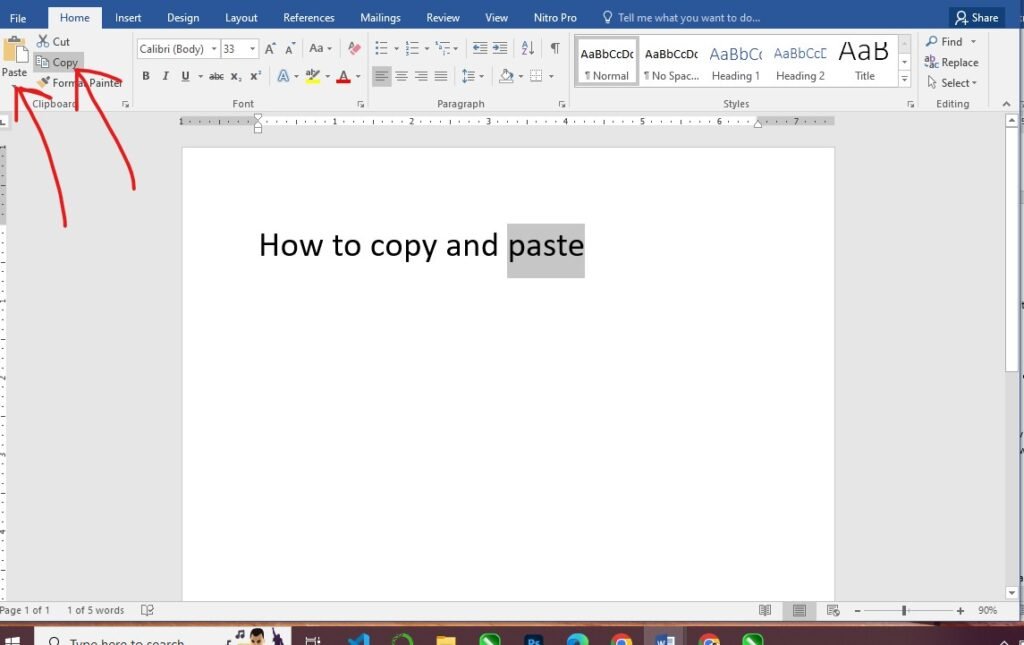
Not a shortcut freak? Here’s the step-by-step guide on how to copy and paste with the mouse or touchpad:
- Firstly, you need to highlight the item (text, file, or image) you want to copy.
- Right-click on it and select the “Copy” option.
- Navigate to where you want the item, then right-click and select the “Paste” option, and the item(s) will the pasted immediately.
How to Copy and Paste from the Menu
If you use apps like Microsoft Word or Microsoft Excel, you can copy and paste via their menu without using shortcuts. This option is mainly for beginners who are not too conversant with shortcuts. Here’s how to do that:
- Select and highlight the item you want to copy
- On the menu at the top left corner, you click on “Copy”.
- Move to where you want to paste the item
- Navigate to the menu section again and click on “Paste”.
How to Copy and Paste Files or Images on a Dell Laptop
To copy and paste an image from the web, you need to right-click on the image and click on “Copy image”, move to the location you want to paste the image, right-click, and select the “Paste” option. You can also use the Ctrl + V command to paste the image.
To copy a file or folder, you need to select the folder, right-click on it, and select Copy, then proceed to the intended location, right-click, and select the “Paste” option. This option is needed especially when moving or transferring a large number of files to another folder or drive.
How to Copy and Paste using Clipboard History
The clipboard Copy and Paste feature is a superb trick that is still unknown to many Dell users. This feature is found in Windows 10 and 11. Here’s how to copy and paste using the clipboard history:
- To paste your clipart history, just click on the Windows Key + V.
- The list of everything (both image and text) you copied recently will pop up.
- Click on anyone you want to paste.
This is usually helpful when you’ve copied multiple items and want to paste any item you copied before.
How to copy and paste Screenshots on a Dell Laptop?
Coping and pasting of screenshots on a Dell laptop is another vital operation you might want to know. To screenshot and copy the screenshot, follow the steps below:
- To take a screenshot, Press Windows + Shift + S key.
- Select the areas you want to screenshot, and it will take the screenshot and copy it to the Clipboard automatically.
- Press Ctrl + V to paste the screenshotted item.
However, if you are searching for how to copy and paste a screenshot on a Dell Laptop, the above step is the easiest way to go about it.
Why can’t I copy and paste on my Dell Laptop?
There are several that might result in you not being able to copy and paste on your Dell laptop, such as conflicting software, corrupt system files, outdated software drivers, or a Keyboard Issue. To fix this error quickly, you need to make sure your mouse or keyboard drivers are up to date, make sure your Ctrl keys are working, and then run a system file checker to repair corrupted files. If the error persists, you restart your laptop to fix minor glitches.
Conclusion: Techniques on How to Copy and Paste on a Dell Laptop
Knowing how to copy and paste on a Dell Laptop is mandatory for everyone who operates the computer, because it is needed is whatever you want to do on the system. Copying and pasting is applicable in text, images, or even links, and Dell Laptops make the process easy with both the right-click method and keyboard shortcuts.
So, if you ever get stuck and wondering how to copy and paste on your laptop, just remember the simple shortcut: Ctrl + C to copy and Ctrl + V to paste. This works for all Windows laptops. However, if you’re using Mac laptops, you will use the Command + C to copy and the Command + V key to paste.