Have you ever imagined being stranded and wanting to make a phone call, only to see your iPhone showing “No Service”? One frustrating thing is that when your phone shows No Service, you can’t make calls, send text messages, or even use your mobile data, especially when everything was working well before that moment.
Carriers like Verizon, T-Mobile, AT&T, and the newer eSIM-only iPhones encounter this problem. This means it happens on both old and new iPhone models. However, this is usually caused by Carrier Network glitches, network settings, or account-related issues. Many people often regard the “No service” problem as a hardware-related problem, but it is not.
So, if you see the “No Service” on your iPhone, in this guide, we will explain why it happened, step-by-step guide on how to fix it, and when you should contact support to get your iPhone back to normal. Just make sure you read the article patiently till the end.
What “No Service” Means (Real Life Expression)
Whenever you see your iPhone show “No Service”, it simply means that your phone is unable to get a signal or connect successfully to your carrier’s cellular towers. Just picture it to be a failed handshake. This happens as a result of something interrupting the connection between your phone and carrier.
The No Service problem can easily be fixed by sometimes restarting your phone, moving to another location, or turning on your Airplane Mode and turning it off. These are the quick-fix methods for the “No Service” error. You can also check out why your iPhone is not receiving calls but has internet
How to Fix “No Service” on iPhone (US Carriers) and Causes
1. Carrier Network Glitches
One of the most common reasons for the “No Service” is glitches in the Carrier Network. This happens because the US carriers regularly carry out maintenance, upgrade their towers, and switch frequencies. Sometimes your iPhone doesn’t connect immediately or properly after these changes.
To Fix this:
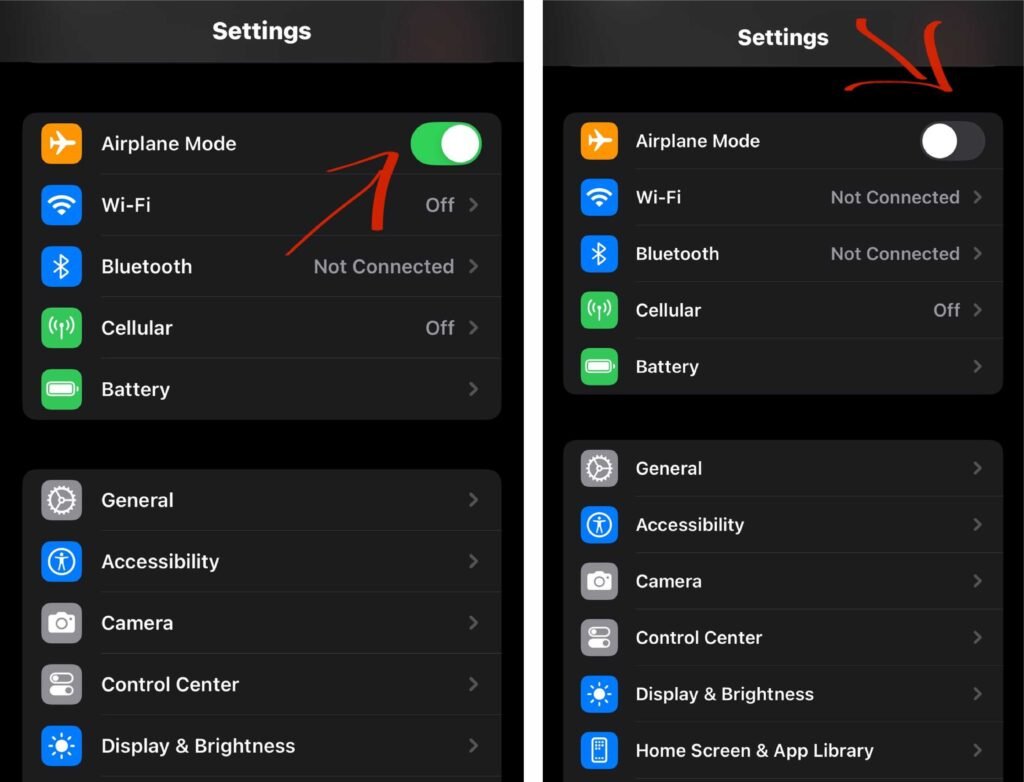
- Turn ON your Airplane Mode for some time and turn it OFF.
- You can also restart your phone to refresh the memory.
2. SIM or eSIM Activation Problem
You will always encounter the No Service error if your SIM is not properly activated. Most US carriers now use eSIM for newer iPhone models, like the iPhone 14, to iPhone 17 models. So you’ll likely see the No Service if your eSIM was recently activated, transferred from another phone, was reinstalled after a reset.
To Fix This:
- Go to your phone Settings
- Click on Cellular
- Check if your lines is Active
- If it’s not Active, contact your carrier for assistance
3. Outdated Carrier Update
You might get the No service error on your iPhone as a result of outdated carrier settings. These settings control how your phone connects to your carrier’s tower. So if these settings are outdated, your iPhone may not connect to the network. Note that your carrier update is different from the iOS updates.
To Fix This:
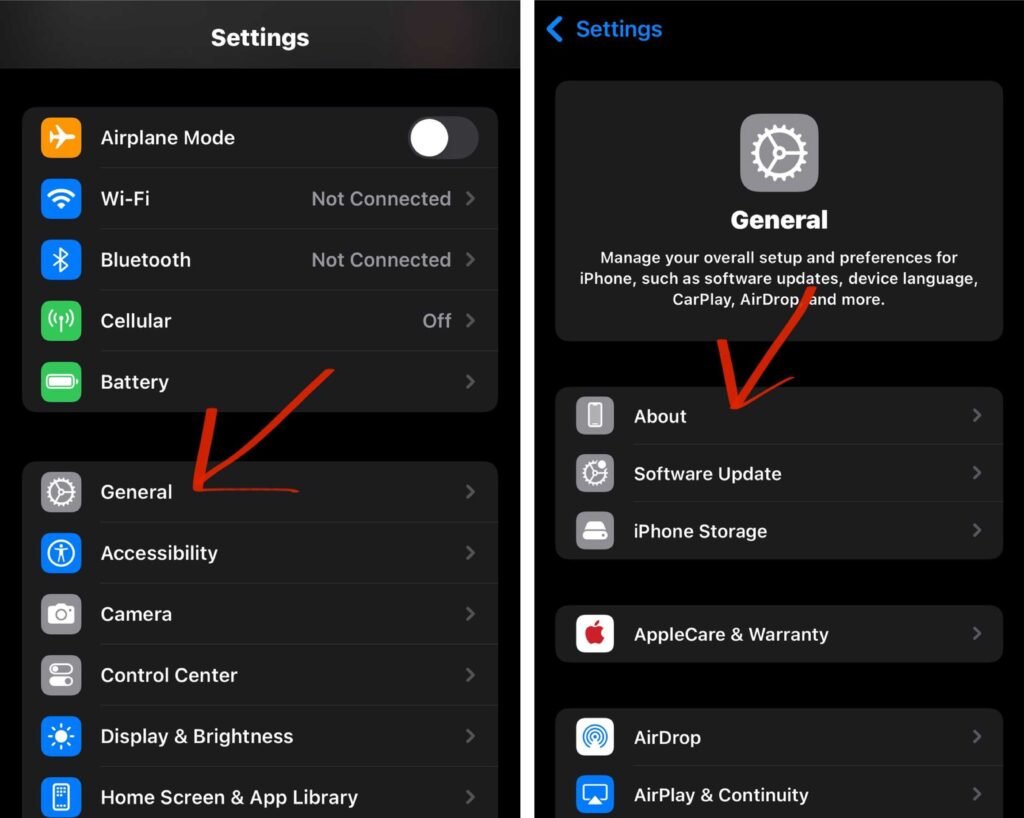
- Go to Settings
- Click on General
- Click on About and Wait for Some Seconds
- Install the latest Carrier Update
4. Network Mode Conflicts (5G/LTE Switching)
Network Mode conflicts can also result to your iPhone showing “No service”. This mostly happens in area with no stable 5G coverage. So when your when your iPhone tries to connect and the connection fails, its shows the No Service error.
To Fix This:
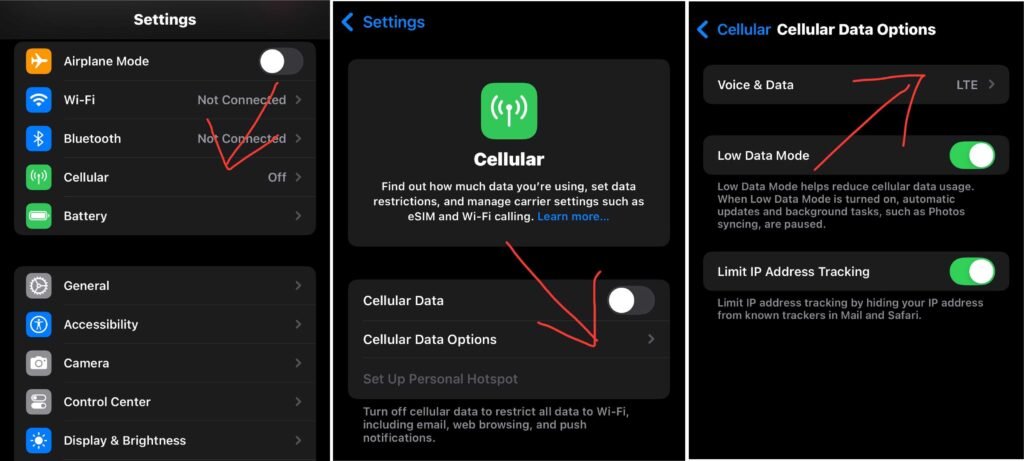
- Go to Settings
- Click on Cellular
- Select Cellular Data Options
- Select Voice & Data
- Choose LTE instead of 5G
This is one of the most functional quick fixes to the No Service error on iPhones.
5. Wrong Network Selection
Selecting the wrong network can also result to your iPhone showing the “No Service” error. This often occurs when your iPhone fails to automatically select the right Carrier or when you select the wrong network carrier.
To Fix This:
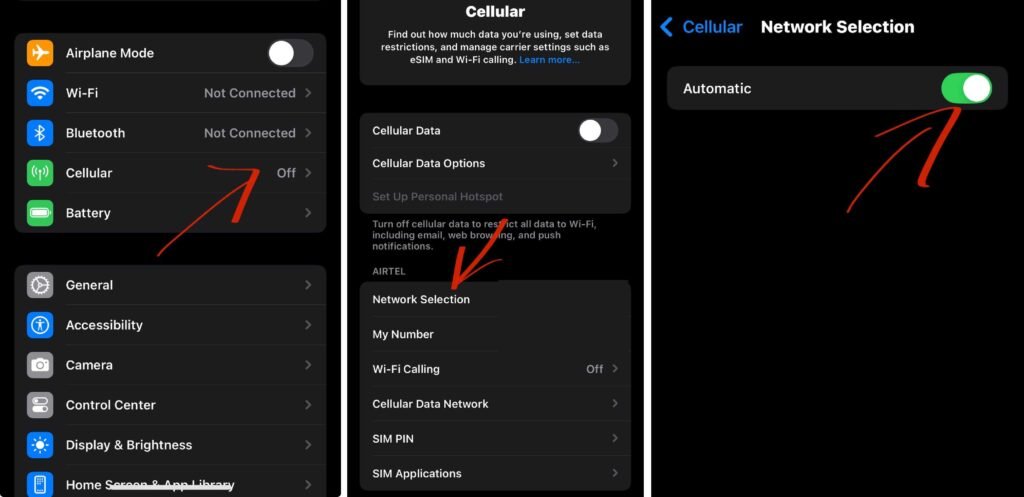
- Go to your Phone Settings
- Click on Cellular
- Click on Network Selection
- Turn OFF Automatic
- Wait for available Networks to display
- Then select your preferred Carrier manually
6. Software Bugs After iOS Update
Some carriers temporarily lost network connections after an iOS update. So if your iPhone shows No Service after an update, or service appears and disappears, then you should know that it is an iOS update-related problem.
You can fix this by restarting your phone are resetting your network settings.
To Fix This:
- Go to settings
- Click on General
- Click Transfer or Reset iPhone
- Click on Reset to reset the settings
- After that, restart your iPhone
7. Signal Dead Zones
Your iPhone will likely show “No Service” in areas or locations with weak signal or no signal. This usually appears in rural areas, in basements, or inside buildings, then it is a coverage issue and not a phone problem.
To Fix This:
- Move to a new location
- Step out if you’re inside a building
- Then restart your phone
Quick “No Service” Fixes
- Turn ON for some seconds and Turn OFF
- Restart your phone
- Update your carrier settings
- Reset network settings
- Check your cellular line status
- Switch your network Mode (from 5G to LTE or vice versa)
When to Contact Your Carrier
- When the “No Service” error lasts for more than 24 hours
- If your line shows as inactive in Cellular settings
- When you recently switched to a different plan or phone
- If after resetting your settings multiple times
- If your eSIM fails to activate
When to Contact Apple Support
- When another phone on the same carrier functions properly
- Your SIM or eSIM works perfectly in another phone
- When your iPhone shows No Service everywhere you go
Final Thoughts
There are several ways on how to fix no service on iPhone (US carriers), either by restarting your phone, turning ON your Airplane Mode and Turn it OFF again, resetting your network settings, or switching to another network mode.
But if all these didn’t work, then you need to contact your carrier support or Apple support to help you fix the No Service error on your iPhone.
Frequently Asked Questions (FAQs)
Why does my iPhone suddenly say No Service?
This can happen due to network changes, a temporary Carrier Glitch, or an eSIM activation problem.
Does No Service mean my iPhone is broken or Bad?
No, the No Service error most times is usually a network or software issue, but not hardware-related.
Why does No Service happen only in certain places or areas?
Some areas or locations have weak or no signal. This means whenever you’re in these areas, your phone will automatically lose service, which will result in your iPhone showing “No Service”.
Will resetting my network settings delete my phone data?
No, it won’t delete your phone data. It will only clear network preferences and Wi-Fi passwords.
How long should No Service Last before contacting Support?
If “No service” lasts about 24 hours after trying out the basic fix options, then you can contact your carrier.
Can an iOS update lead to No Service?
Yes, most time iOS updates no affects some carriers until the carrier settings are reset.